Customisation Tips – Entities

Following on from my last post I wanted to share some of the tips I’ve picked up along the way related to developing new entities in Dynamics CRM/365.

The first major step in any development is the creation of a new system entity, and there are plenty of opportunities for missteps here.

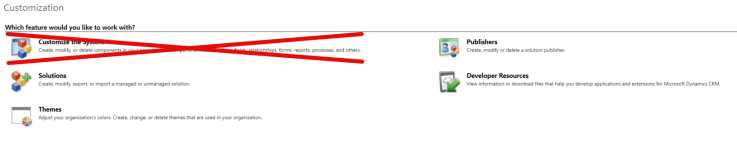
Per my last post, ensure any new Entity is created from within a solution, and NOT by selecting “Customize the System”!

Ownership

Entity Ownership

The initial decision you need to make is to decide whether you need the Entity to be owned by a User or Team, or by the Organization.  This decision can be influenced by the following factors:

  • Does the entity need specific security, or will it be open to all Users?
  • Do you need to have a specific named Owner of the records in the Entity?
  • Is the entity going to be used for a reference record (e.g. preferred language, region, etc.)?

This decision cannot be changed after the entity is created, so it is important to make the right decision.  If you’re not sure, I’d always recommend selecting User or Team ownership, as you can work around this to emulate Organizational ownership, this isn’t possible the other way around.

For more reading, see this article on MSDN.

Activity Entity

The next decision you need to make is whether the entity is an Activity or not.  This is a fairly straightforward decision

If the records will have a Start Time and/or an End Time, and will be Completed by Users, then it is probably an Activity.

It’s important to remember that defining an Entity as an Activity Entity cannot be undone, and that Activity Entities don’t have security, all Users can see all Activities, so factor this into your thinking.

Primary Field

Primary Field

A simple mistake I have seen made by many developers is to overlook the Primary Field.  It’s on a separate tab, so it’s really easy to click Save and forget about it, only to regret it later.

It’s important to give it a relevant name for your entity.  The Primary Field can only be a Single Line of Text field, formatted as Text.  Update the Display Name and Name to something relevant for your new entity, also decide if you want the Field to be required or not, and update the Maximum Length. I’d also recommend adding a proper description here.

The Primary Field is used for lookups to the entity, and is the default field included in a View when you create an entity, so forgetting about it can lead to search results that look like:

NoNameEntity.PNG

Even if you’re not going to use the Name (for example if you’re creating a manual intersect entity), I’d always recommend setting it up properly.  In situations where I’m not using the Name I will always set up a Workflow or Business Rule to set the Name automatically.

Entity Options

The last thing to decide before you save your new entity is which of the options you want to select. The best advice I can give here is to untick everything, unless you are ABSOLUTELY sure that you need to keep a field ticked.  This is particularly important for the Business Process Flow, Feedback, Notes, Activities, Connections, Sending Email, Queues, and Enable for SLA fields, which cannot be disabled once they are selected.  You can always enable them later if you need them, but they create fields on your entity, and add to clutter if they’re then unused.
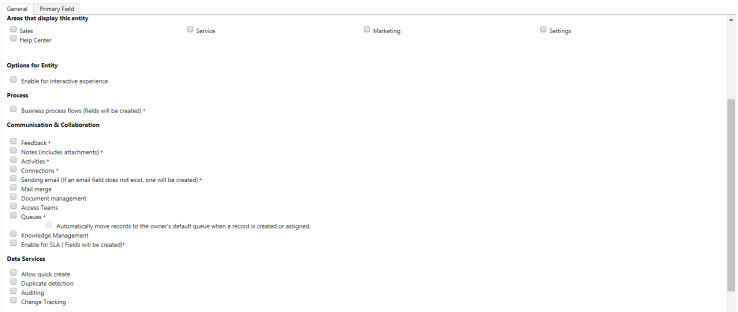
No Ticks

The guys over at CRM Tip of the Day have turned entity creation into a handy illustrated guide that you should definitely print out and hang up on your wall to remind you of these rules!

Once you’re happy with all of the entity options, click Save and now you can move on to adding Fields.  I’ll share my tips for Fields in my next post.
Customisation Tips – Solution Management

When I first started using CRM I made plenty of mistakes that cause me to physically cringe when I reflect on them, so I hope that by sharing some tips that I’ve picked up on my journey, I may be able to help others avoid them.

I’ve been discussing customisation best practices internally in my organisation and, since I’ve been documenting them anyway, I thought it would be worth sharing my thoughts.

Use solutions

This is probably my number one tip. If you’re doing any sort of system customisation, please put it in a solution container; NEVER make changes directly to the base solution – just pretend the “Customize the System” button doesnt exist.

Ignore the Customize the System button

By using a Solution you can avoid the dreaded new_ prefix on newly created fields/entities/web resources, etc. and use your own publisher prefix.  A solution also operates as a container for all the customisations you are making to the system, which makes it significantly easier to understand what changes have been implemented for you and anyone else who may be working on your system.

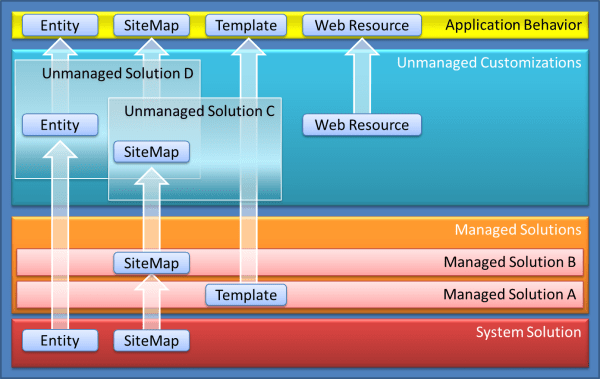
One of the biggest debates on the use of Solutions is whether you should Managed or Unmanaged. I have used both in different systems and I don’t think there is a single right answer; it all depends what is right for you in your system (though Microsoft officially recommend the use of Managed Solutions (see https://msdn.microsoft.com/en-gb/library/gg334576.aspx#BKMK_UnmanagedandManagedSolutions)

Managed or Unmanaged

There are plenty of posts by more experienced heads than I discussing the differences between the two solution types, and weighing up the pros and cons of each, so I’d recommend seeking them out for further reading.

The only real piece of advice I’d like to add is that Unmanaged Solutions are easier to manage (pun intended), and you can always convert an Unmanaged Solution to a Managed Solution in future if needs be; just be aware of the potential for unintended changes to be added to the solution by over-zealous developers during UAT or while it is live in the Production environment, leading to solution disparity.  You should weigh up the control of Managed Solutions versus the flexibility of Unmanaged Solutions in any decision-making.

Version Numbering

Aligned with the use of Solutions is to ensure you have a rigorous and consistent approach to versioning. Using version numbers makes it a lot easier to manage your solutions, and to identify issues if and when they arise.

My approach is to use the standard of Major.Minor.Release (#.##.####), as defined below:

Version Numbering

Major – this should be incremented every time you introduce some significant functionality, change the phase of the project, or if you upgrade to a new version of CRM

Minor – this should be incremented every time you release an update to the solution that introduces minor features or changes that are building on existing functionality.

Build – this should be incremented with every single release, and should cover bug fixes, etc.

There are lots of different version numbering schemes available (e.g.  Major.CRMRelease.Minor.Release, Year.Month.Day.Revision, etc.), and it doesn’t really matter which one you use –  the important thing is that you use a consistent version numbering scheme in your development, and that everyone working on your system understands the numbering scheme.  I’ve previously inherited a system developed by a Microsoft Partner who had used 4 different numbering schemes when deploying solutions which gave me no end of headaches.

Documentation

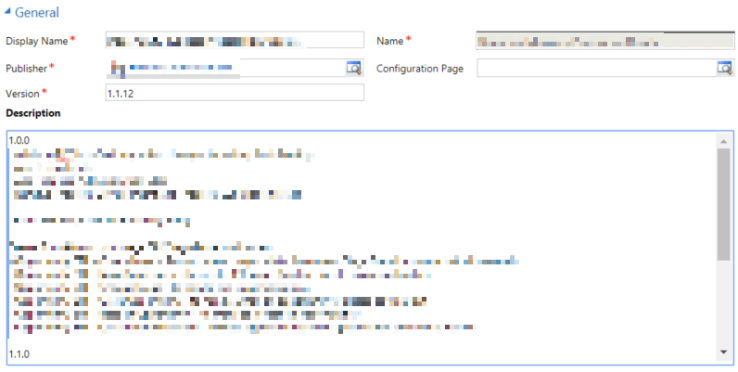
I’m sure I’m not alone in not particularly enjoying writing documentation, but also cursing out any other developers who dare to release a solution without documentation.  As important as it is to develop system updates, writing appropriate documentation is equally important.  I’m not suggesting that you include War & Peace with your releases, but adding a few notes on the release history to the solution description field will go a long way to helping both future you, and anyone else who may be working on your system

Release Notes

Having these little notes provides a perfect aide-mémoire when you come back to work on the solution in six months time, and taking the two minutes to do it now will save you hours down the line.  I like to keep a more detailed release note history to go with my solutions too; for a great example of detailed release notes you could look at ClickDimensions.

Quick Tip: To make your life a lot easier when writing release notes, the MetaData Document Generator plugin for the XRMToolBox is a lifesaver

My next post will outline my tips related to new entities, fields, views, etc.